
Gmail Filter Setup: 60-Second Guide for Professionals
TL;DR: Master Gmail filters in 60 seconds to automatically organize your inbox. Step-by-step guide for creating email filters that save hours of manual sorting.
Quick Take: Master Gmail filters in 60 seconds to automatically organize your inbox. This step-by-step guide shows you how to create filters for newsletters and any email type, saving hours of manual sorting.
How to Create and Organize Email Filters in Gmail
Here's your practical win for today. I'll walk you through setting up a Gmail filter for the First AI Movers newsletter—and you can adapt this for any other subscription or email.
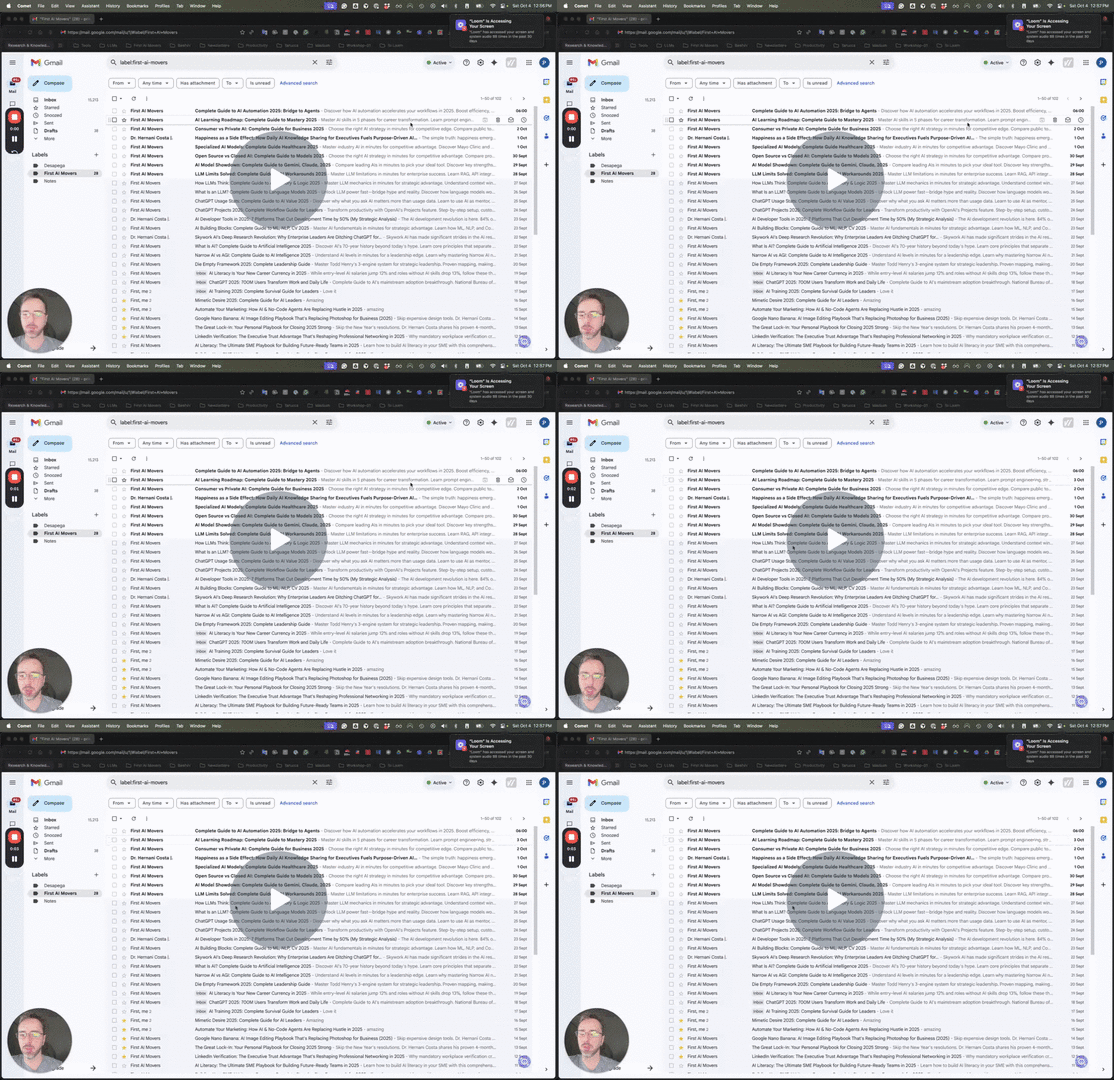
Link to Loom: https://loom.com/share/d209d3b165d64d348de207095cd2a9c3
Step 1: Access Your Email 0:00

- Open your Gmail account.
- Locate the email address you want to filter.
Step 2: Create a Filter 0:23

- Click on the email address.
- In the search bar, type 'from:' followed by the email address, e.g., [email protected].
- Click on 'Create filter'.
Step 3: Choose Filter Actions 0:37

- Decide what you want to do with the filtered emails:
- Skip the inbox (archive it).
- Apply a specific label (e.g., 'Newsletter').
- Create subfolders for better organization.
Step 4: Additional Filter Options 0:57

- You can also:
- Automatically archive emails.
- Forward emails to another address (for advanced users).
- Ensure emails never go to spam.
Step 5: Mark as Important 1:07
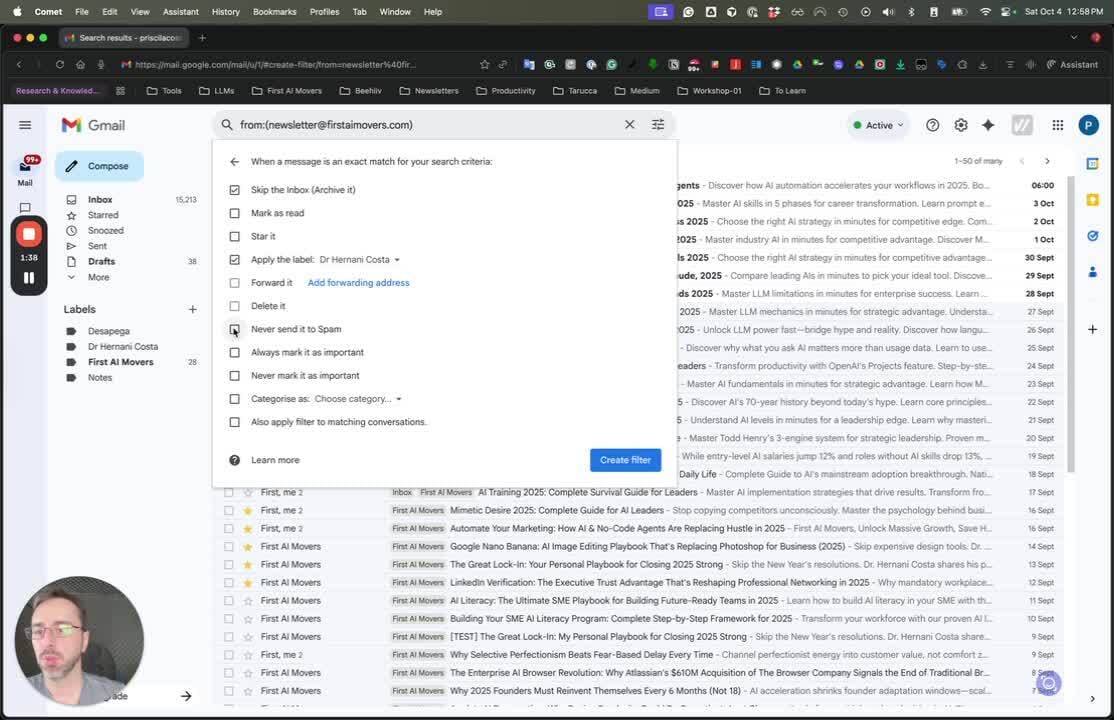
- Always mark important emails to ensure they are delivered to your inbox.
Step 6: Use Categories 1:17

- If you prefer not to use labels or folders, consider using Gmail's categories.
Step 7: Apply Filter to Existing Emails 1:40
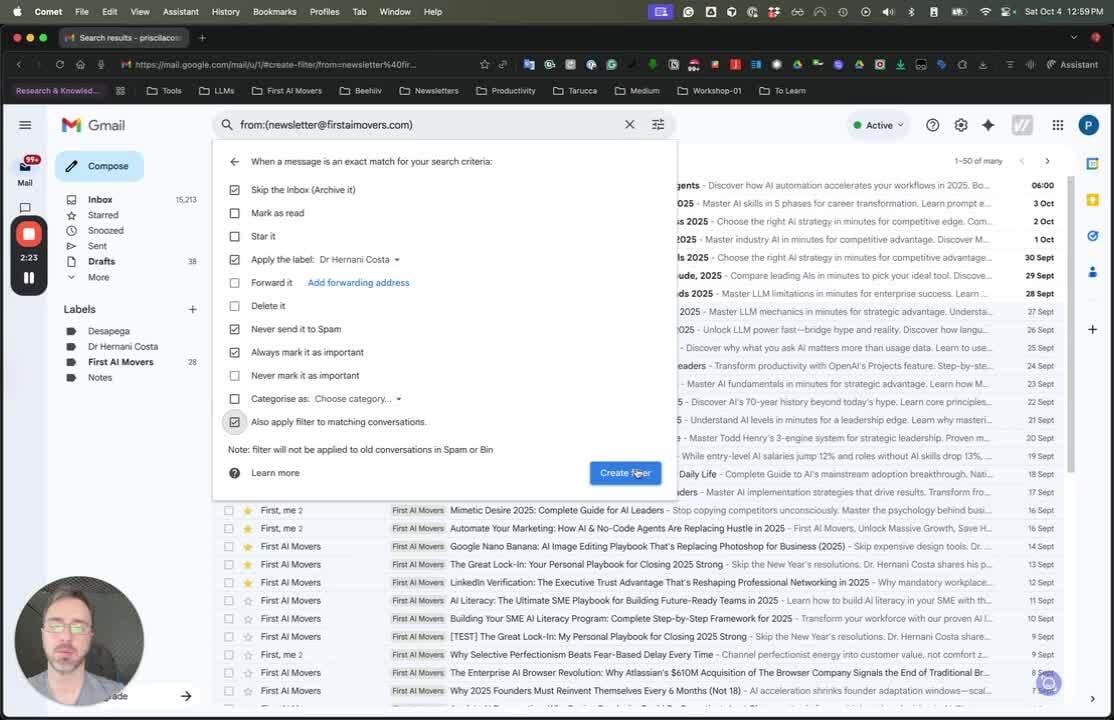
- The filter will also categorize and classify all past emails that match the criteria.
Step 8: Review and Finalize 1:40

- Review your filter settings and finalize to organize your email effectively.
Originally published at First AI Movers. Written by Dr. Hernani Costa, Founder and CEO of First AI Movers.
Subscribe to First AI Movers for daily AI insights and practical automation strategies for EU SME leaders. First AI Movers is part of Core Ventures.
Ready to automate your business? Book a call today!
About the author
- PhD in Computational Linguistics. I build the operating systems for responsible AI. Founder of First AI Movers, helping companies move from "experimentation" to "governance and scale." Writing about the intersection of code, policy (EU AI Act), and automation.
Comments
Join the discussionNo comments yet. Be the first to comment.